Overview
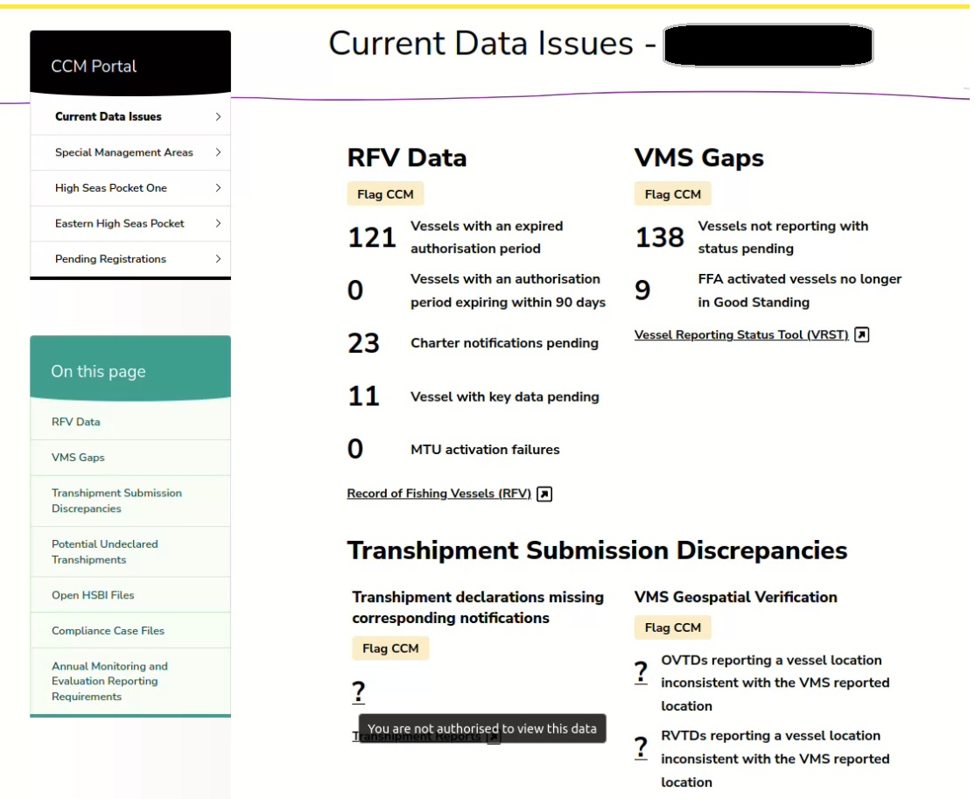
The Current Data Issues Dashboard gives CCMs one place to identify potential data and reporting issues across WCPFC systems. It also links to the relevant system so each issue can be reviewed and, where necessary, addressed through the usual process.
By bringing current information together, the dashboard helps CCMs monitor fleet activities and address issues earlier. Developed with voluntary contributions from Canada, it can evolve to reflect further CCM priorities and activity statistics.
The dashboard brings together information from:
- Record of Fishing Vessels (RFV)
- VMS Vessel Reporting Status Tool (VRST)
- Transhipment E-Reporting tool (TSER reports)
- Inspections system for High Seas Boarding and Inspection (HSBI) files
- Compliance Case File System (CCFS)
- Annual Monitoring and Evaluation reporting requirements.
For transhipment issues, the dashboard also shows new reports that combine TSER and VMS data to highlight matters previously available only through the Secretariat’s quarterly reconciliation reports which are provided to those CCM's conducting high seas transhipments.
How to access and use the dashboard
Log in to the WCPFC website. See Accessing Secure Content if you need assistance.
CCM users will only be able to view data issues for systems that they have existing "VIEW" or "EDITOR" permissions for. If you believe you should have permissions for issues you cannot see, please contact your Party Administrator.
Once logged in, move your cursor over the “Secure Portals” menu tab then click on “CCM Portal”, the first link in the dropdown menu.
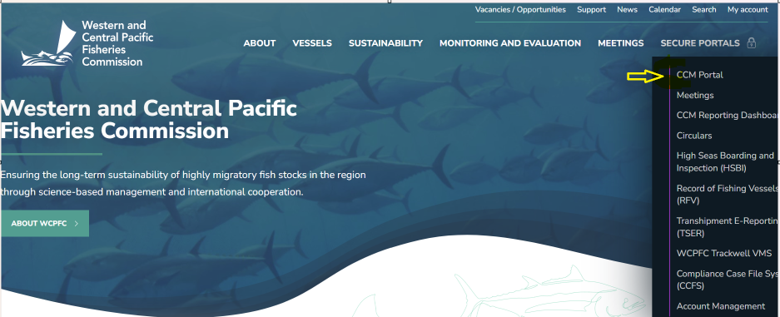
The CCM Portal will open. On the left of your webpage is the list of topics in the CCM Portal. Below this is the list of topics on this webpage.
To the right of these menus is the dashboard itself with data for any issues relevant to you, along with a link to the relevant system to review more details about any issues. A yellow flag will indicate the applicability of an issue e.g.  ,
,  .
.
If there are no issues, then 0 will show. If a user has not been granted permission to the applicable system, a question mark will show and hovering over the question mark will confirm the user viewing the dashboard does not have access.